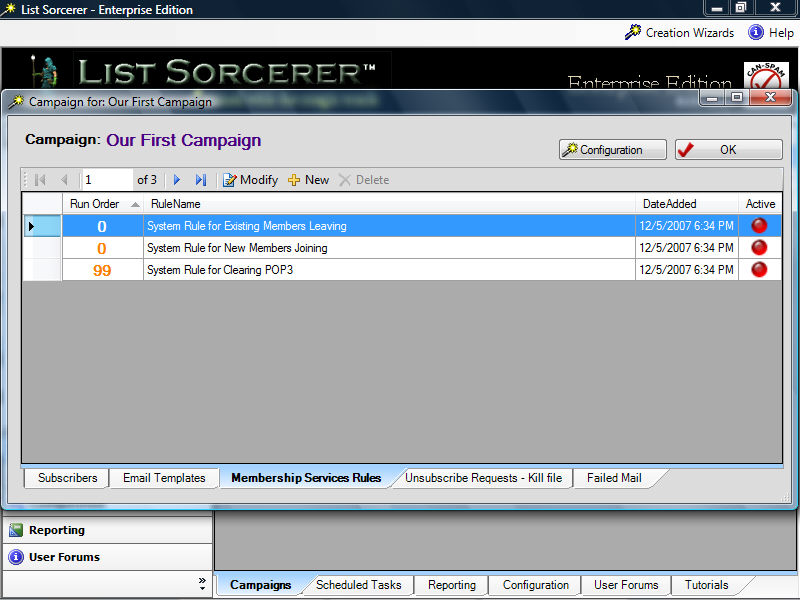
The screen below will look similar to the screen you will be shown upon selecting the "Membership Services Rules" tab of your campaign. You may create and remove membership rules by selecting the appropriate item from the tool bar above. The selected membership rules may be modified at anytime by either selecting the "Modify" item from the tool bar or by simply double-clicking on it. Active membership rules are processed in "Run Order" starting with run order 0, while inactive rules are ignored. Currently the sole purpose of a membership services rule is to process incoming e-mail from your pop3 performing the functionality that you have assigned to the rule. The "Inbound Rule Creation/Modification Wizard" is launched when creating a new membership rule or the editing an existing one.
Step 1/4 - Inbound Rule Creation/Modification Wizard
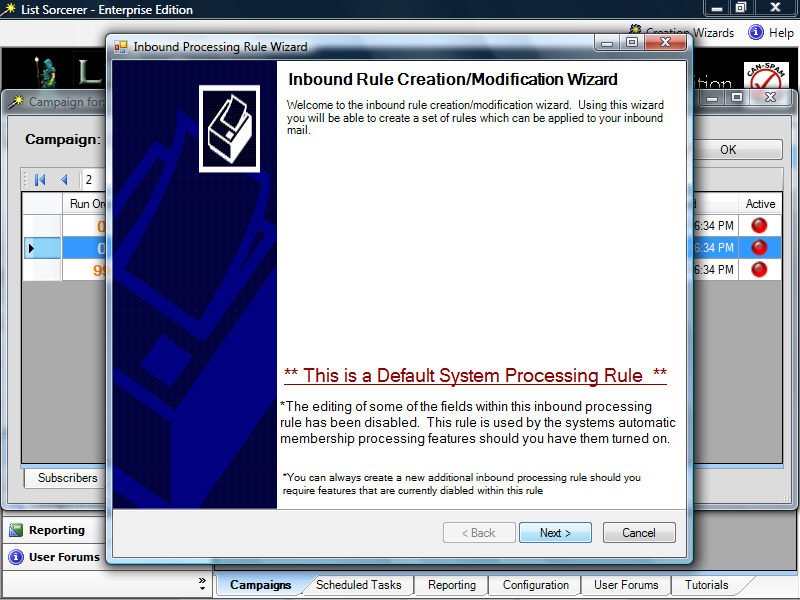
When ever a new membership processing rule is created or an existing one is edited the Inbound Rule Creation/Modification wizard is launched. The initial screen that the wizard presents you with is displayed below. Default system processing rules as the one being shown below will have some of the normally available option fields disabled. This however is not the situation when creating or modifying a non default system rule.
Click the "Next Button located within the lower right hand corner of the wizard to continue
Step 2/4 - Inbound Rule Creation/Modification Wizard
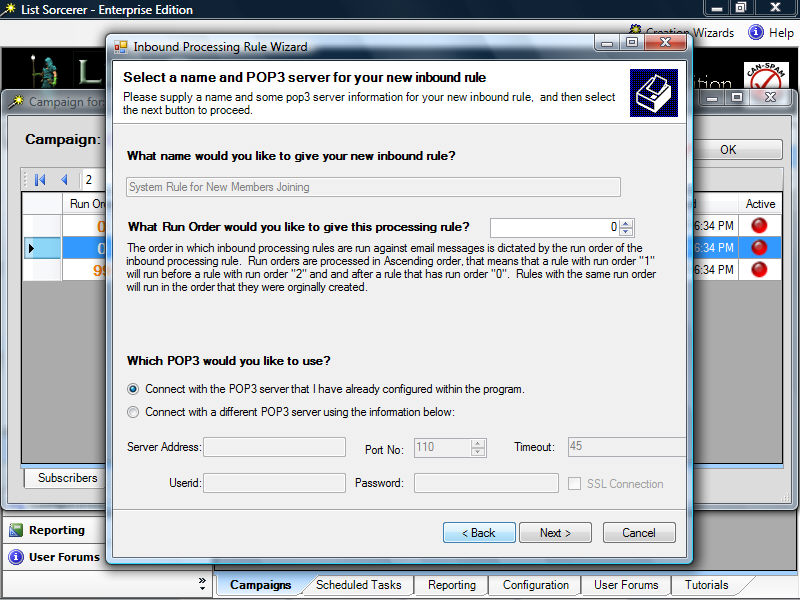
Within this initial wizard step we assign a name for our membership processing rule along with a run priority and your inbound pop3 e-mail server and credentials if different from the default server that you originally configured within the program.
Click the "Next Button located within the lower right hand corner of the wizard to continue
Step 3/4 - Inbound Rule Creation/Modification Wizard
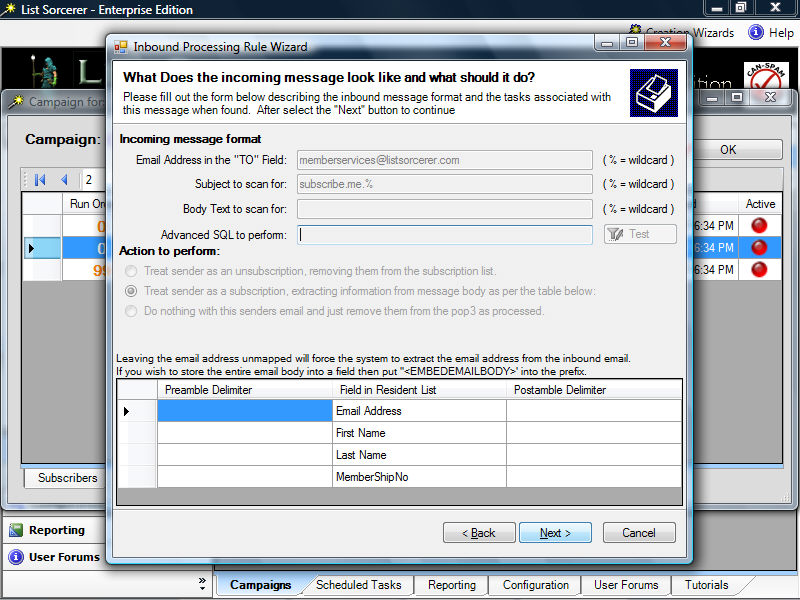
We need to now tell the wizard whether the purpose of this member processing rule is for people subscribing, unsubscribing, or just to clean up the left over e-mail. If you have decided that the purpose of this rule is to process new subscribers then you will also be able to configure additional options in order to extract information from your incoming e-mail if so desired. You processing rule not only has the ability to distinguish qualifying rules based upon from address, subject and body text but you may also specify an advanced SQL filter condition on the entirety of the e-mail currently being processed.
Click the "Next Button located within the lower right hand corner of the wizard to continue
Step 4/4 - Inbound Rule Creation/Modification Wizard
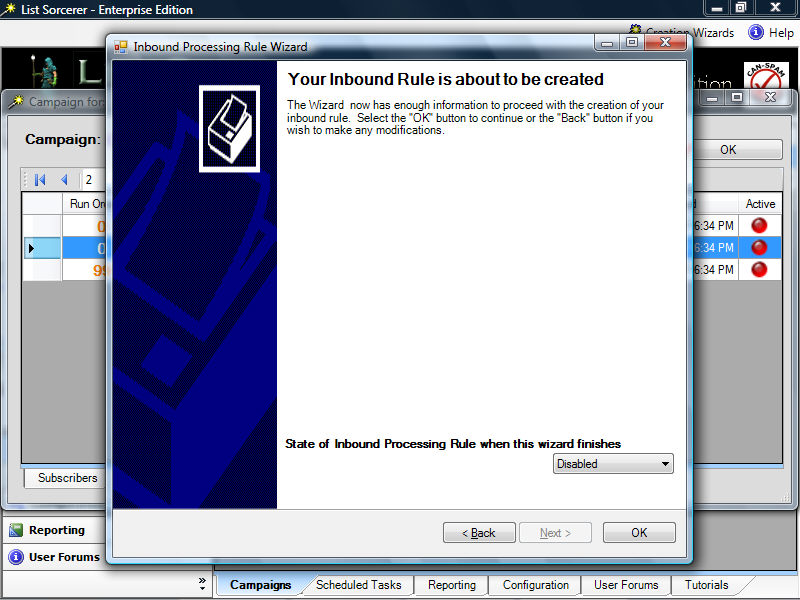
Congratulations! you have completed the configuration of your membership services rule. Remember that if you ever wish to make modifications to these settings in the future you may either re-launch this configuration wizard or using the by selecting the "Configuration" tab of the main program.
Click the "OK Button located within the lower right hand corner of the wizard to continue