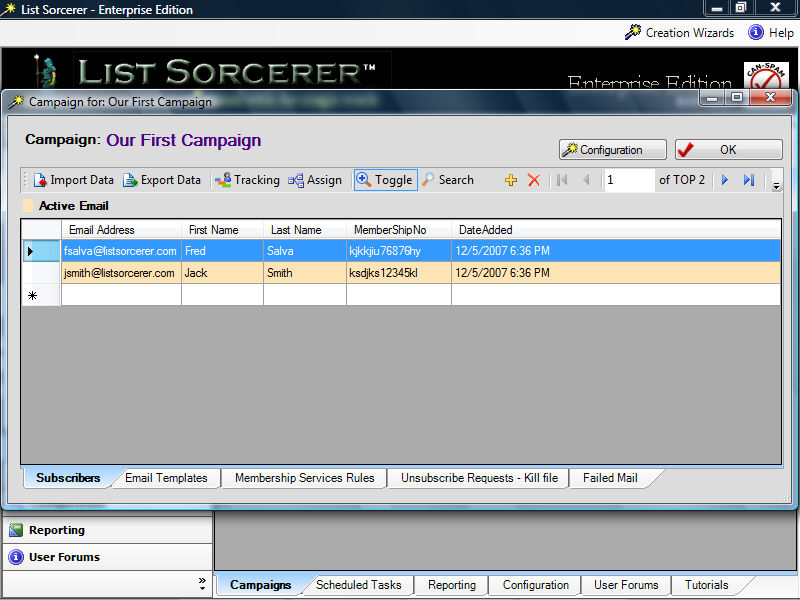
Displayed below is an image of what a typical campaign might look like, by default the campaign displays the subscribers list when first opened. The background color of the subscribers being displayed within this list will change to reflect the state of a subscriber within both opt-in and double opt-in campaigns. There are various subscriber specific activities available by using the convenient tool bar above.
The activities that may be performed using the tool bar are as follows:
Import Data - selecting this option will launch the "import wizard" allowing you to import new external data into the current campaign. The use of the import wizard will allow you either import just an e-mail address or an entire sequence of different data fields. When an import has been initiated the list sorcerer enterprise system will automatically ensure that only unique e-mails to your current list will be included within the import.
Export Data - selecting this option will launch the "export dialog box" in which you will need to specify a output file name, upon clicking the "OK" button the export file will be created which will contain the contents of your subscriber list.
Tracking - when this option is selected you will be presented with a transcript of every activity the selected subscriber e-mail has been involved in. You will also find links to the original subscription e-mail that initiated the subscription of this subscriber to this campaign.
Assign - use this option to either fake the sending or not sent status of e-mail templates. Subscribers within every campaign are assured to receive each e-mail template only once. if you wish to resend a previously sent e-mail template or would like to fake the sending of an e-mail template as being sent that has not already been sent then you would accomplish this through the use of this option.
Toggle - every campaign has two different ways of viewing the same data, by default when you open a campaign the view mode is in table view. You can however toggle the view from table view into form view and back. Sometimes form view is more practical for data entry and display purposes.
Search - this option will allow you to search the entire subscription database for a value within the field that you choose.
Adding and Deleting Subscriber Records - use both the "+" and "-" buttons respectively in order to add and delete records from subscriber list.